

Tags: Teachers, Staff
The quickest, easiest way to get an overview of how much your students are reading is through your Insights Leaderboard.
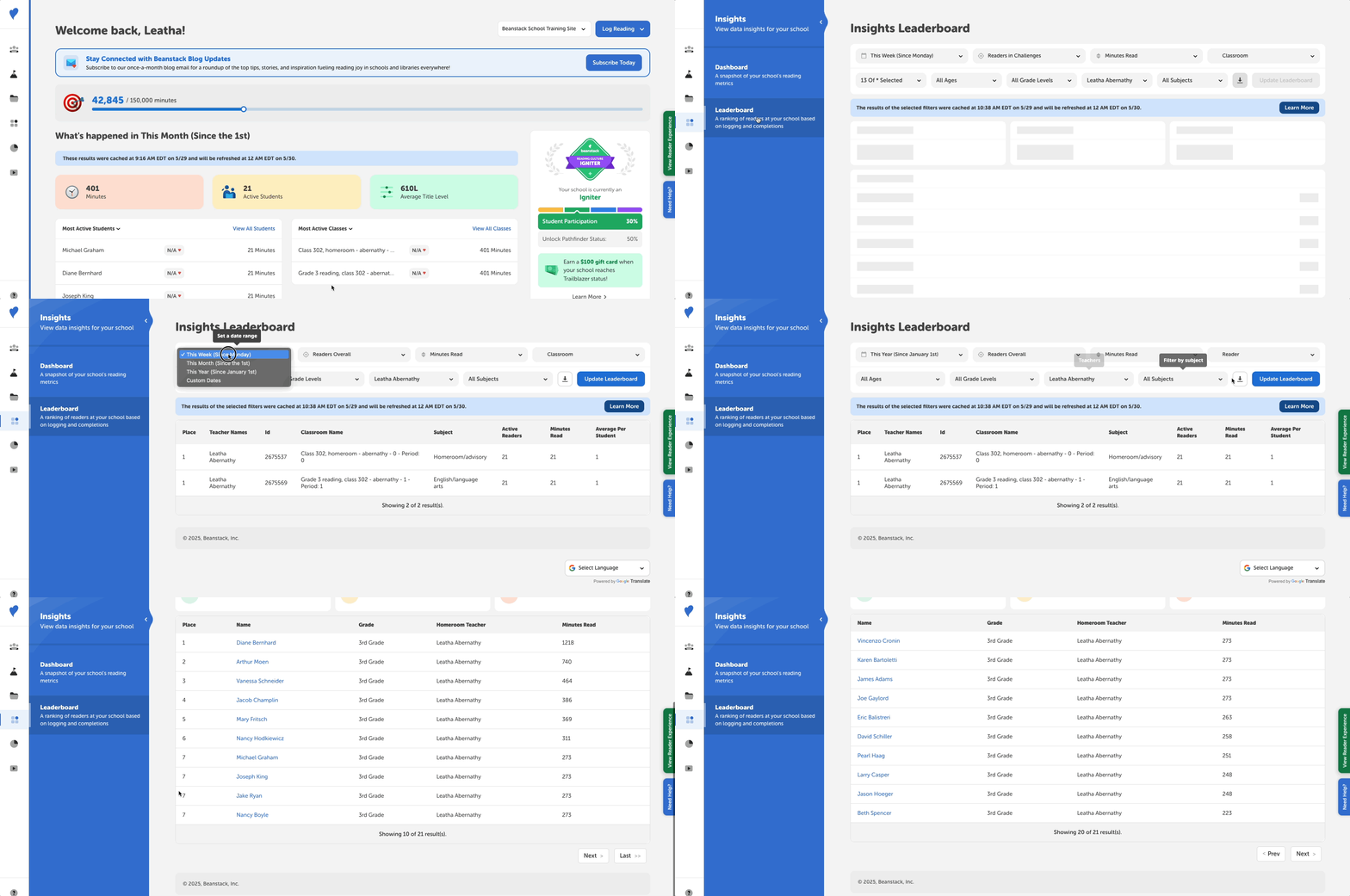 Follow these steps to get an at-a-glance look at your students’ reading progress.
- Log in to the admin view of your school site.
- Navigate to Insights > Leaderboards.
- Set your timeframe and log type, but make sure the “Show data for” dropdown is set to “Readers Overall,” and the “Group for” dropdown is set to “Reader.”
- Then set any other settings, like subjects, grades, and teacher, and click “Update Leaderboard.”
- You’ll then see all the readers who logged during that time period, listed from most reading logged to least. There are 10 students listed per page, so you can click “Next” or “Last” at the bottom of the page to cycle through the readers.
- Note: Since this only shows readers who logged during that time period, there may be less students listed than are rostered to a selected teacher, since those who didn’t log are omitted.
From here, you can click any student’s name to view their reader profile and all their reading details (including their lexile information). You can also download the data as a CSV file onto your local device by clicking the download icon next to the “Update Leaderboard” button.