

Tags: RMI
Note: this article is for RMI Classroom users only. If you have Beanstack and RMI, please refer to our General Information section.
 Students can respond to an RMI Classroom index via access code, in 3 ways:
-
Access Code Only: Students navigate to a URL provided by the RMI Classroom admin, then enter their access code (an 8 character alpha numeric code).
-
QR Code: Students scan a QR code provided by the RMI Classroom admin that redirects them to their personal index page.
-
Direct Access Code URL: Students navigate to a URL redirects them to their personal index page.
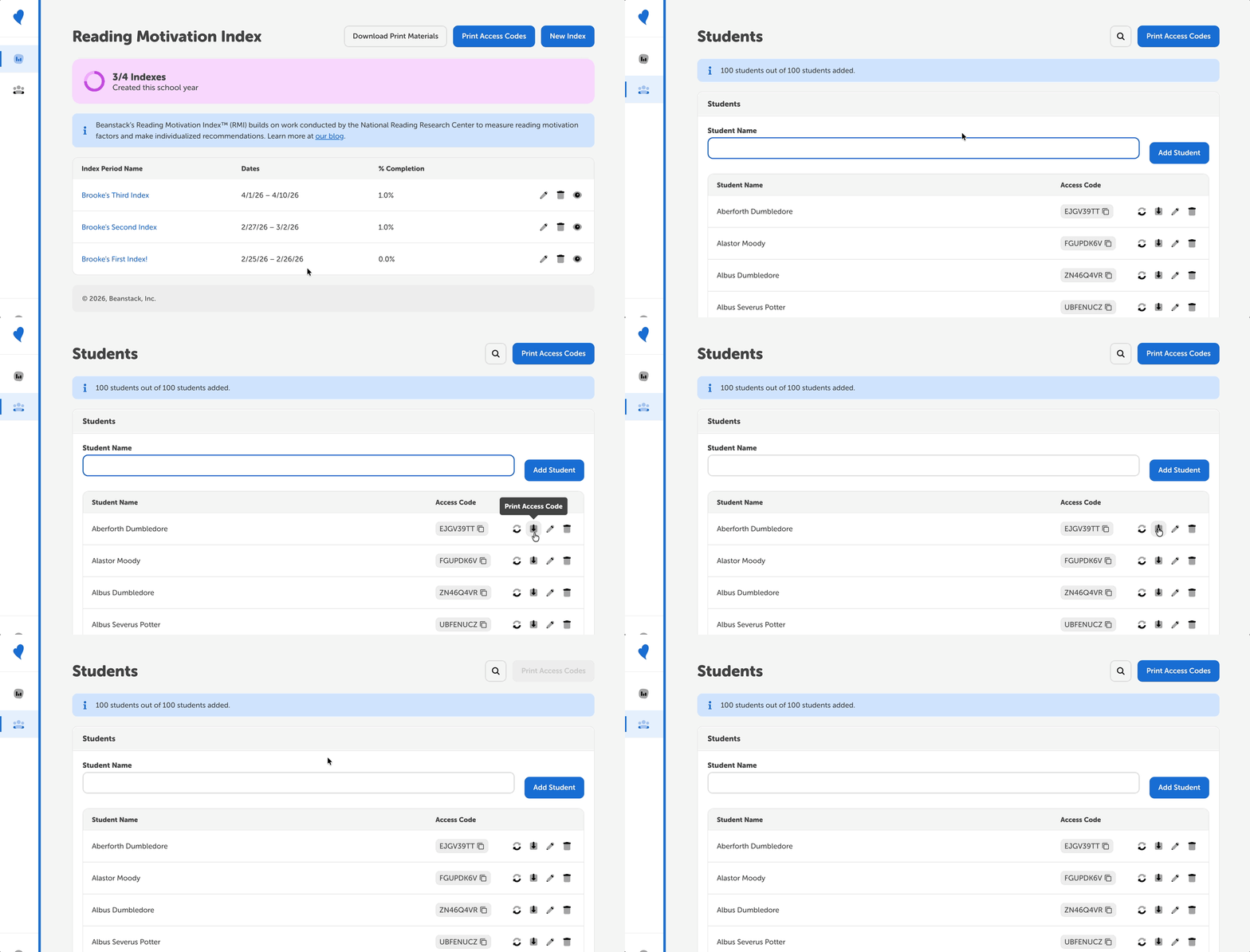
After signing into your account at https://rmi.beanstack.com/, navigate to the Students section (located on the left of the page) to do the following:
Downloading and printing access codes
Locating individual student codes
Downloading and printing access codes
RMI Classroom admins can print all student access codes or individual student’s access codes. These print-outs include the student access code and QR code.
To download and print all access codes:
-
Click on the “Print Access Codes,” located at the top-right of the page.
-
Save and print the PDF.
To download and print an individual student’s access code:
-
Locate the student in the table or by search.
-
Save and print the PDF.
Locating individual access codes
Each student also has a unique direct access code URL that takes them to their personal index page. To find these URLs:
-
Locate the student in the table or by search.
-
Click the code in the “Access Code” column to copy the URL to your keyboard.
Regenerating an access code
If a student encounters any issues accessing their survey, RMI Classroom admins can also regenerate an access code. To regenerate an individual student’s access code:
-
Locate the student.
-
Click the cycle icon to regenerate the code.