

Tags: Logging, Classes & Readers, Students
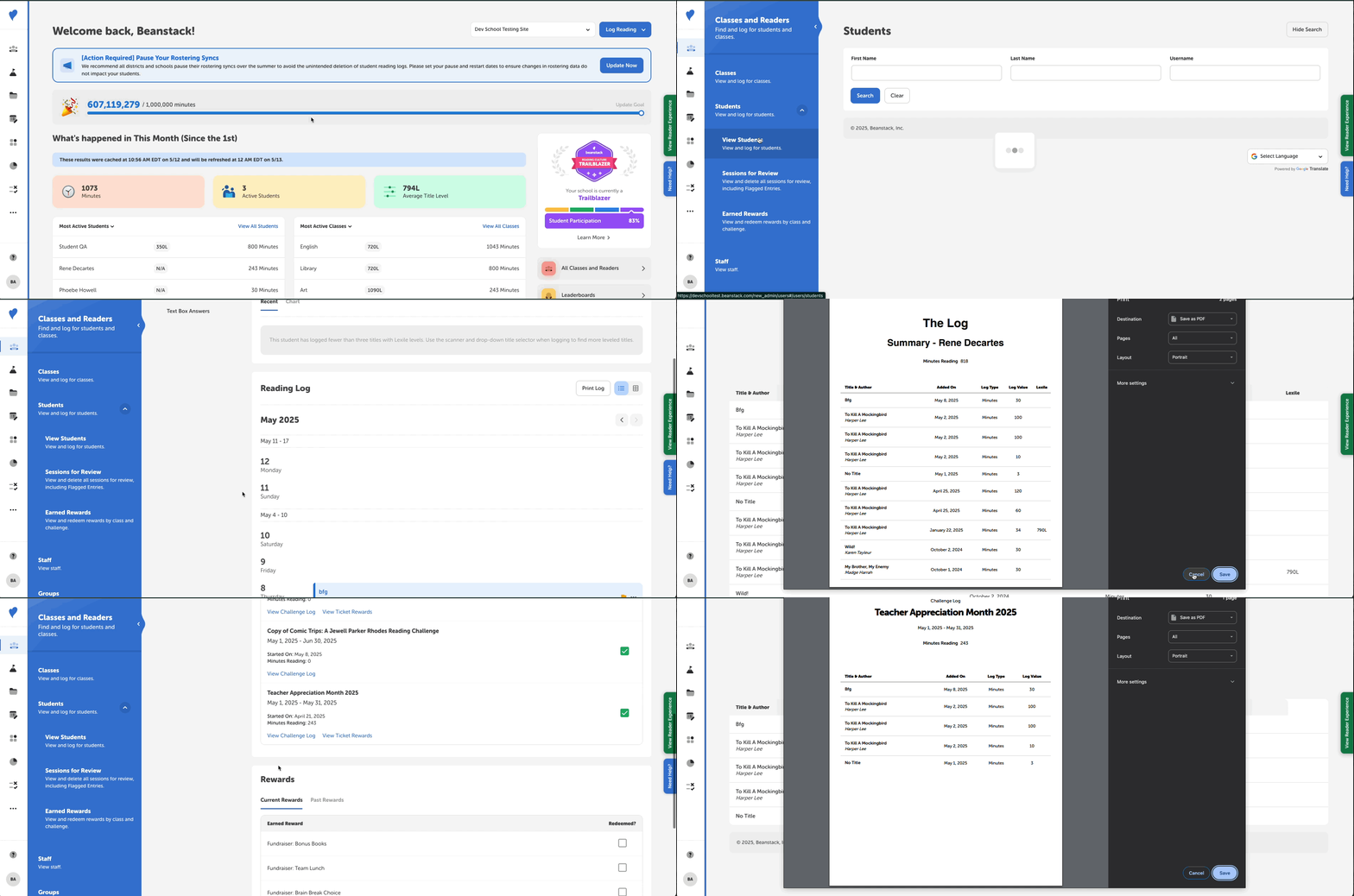
When logged in with a teacher or media specialist account, you can now download or print a copy of a student's reading log from the admin side by following the steps below.
-
Log in to the admin view of your school site.
-
Navigate to Classes and Readers > Students > View Students.
-
Search for the appropriate student and click their name in the “Student Name” column to view their detailed reader profile.
-
Note: If you are logged in as a teacher, you can only access students who are rostered to you.
-
-
To access their all-time reading log, click “Reading Log” in the lefthand navigation sidebar and then click “Print Log.”
-
To access a specific challenge’s reading log, click “Challenges & Rewards” in the lefthand navigation sidebar, find the correct challenge, and then click “View Challenge Log” under it.
-
This will open up a list of all the applicable reading they logged during that challenge, where you can then click the “Print” button.
-
-
Clicking “Print (Log)” on either screen will open a new tab with a printer-friendly reading log and a print pop-up, where you can either select “Save as PDF” to download the log to your local device or select a specific printer to print out a physical copy of the reading list.
-
Click “Save” or “Print” after selecting the accurate destination.