

Tags: Reports & Insights, Libraries
Emailing all your patrons using Beanstack or all patrons in a specific challenge is easily accomplished using reports.
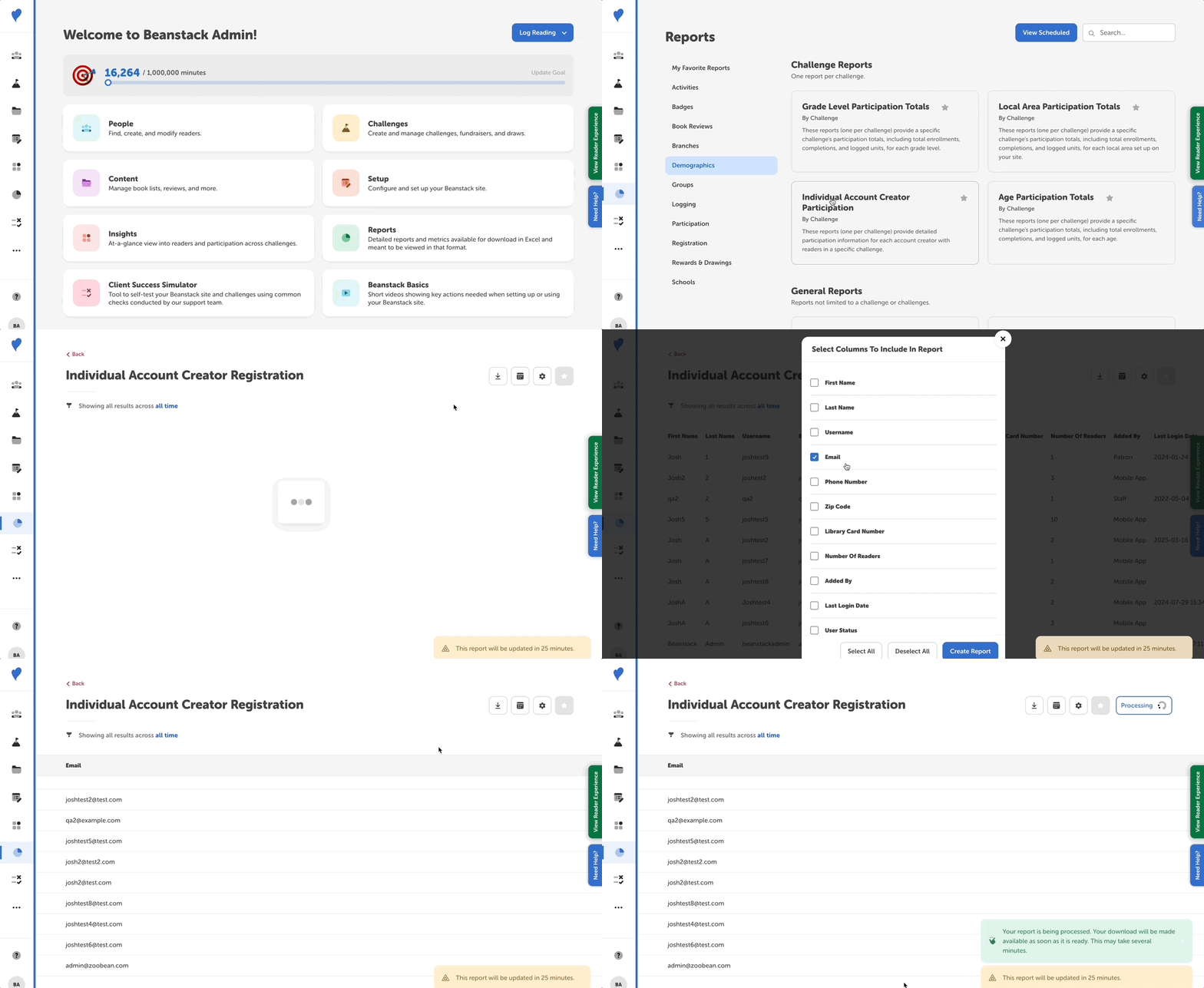
Follow the steps below:
-
Log in to the admin view of your library site.
-
Navigate to the Reports.
-
Locate one of the following reports:
-
To find a list of account information for all account creators on your site, select the Individual Account Creator Registration general report from the “Registrations” section.
-
To find a list of account information for account creators in a specific challenge, select the “Individual Account Creator Participation by Challenge” report from the “Demographics” section, and then select the corresponding challenge.
-
-
Once you have the report pulled up, you can tailor the columns displayed by clicking the gear icon in the upper righthand corner of the screen. Deselect all columns except “Email” to get a list that only contains email addresses. Then click “Create Report.”
-
Note: If your site does not require email address at registration, some accounts may not have an email address listed, and thus the email field will be blank.
-
-
Click the download icon next to the gear icon and select “Download Excel.”
-
Once done processing, a new button will pop up letting you know “Download Ready.” Click this button and then click the download icon to download the data on your local device.
-
Once downloaded, open a new spreadsheet in your preferred spreadsheet software (e.g., Excel, Numbers, or Google Sheets).
-
Select and copy all email addresses and then paste them into your preferred email provider (Constant Contact, MailChimp, Gmail, etc.).
-
Send emails as needed!