

Tags: Challenges, Readers, Web
Note: You can also view and register for reading challenges on the mobile app!
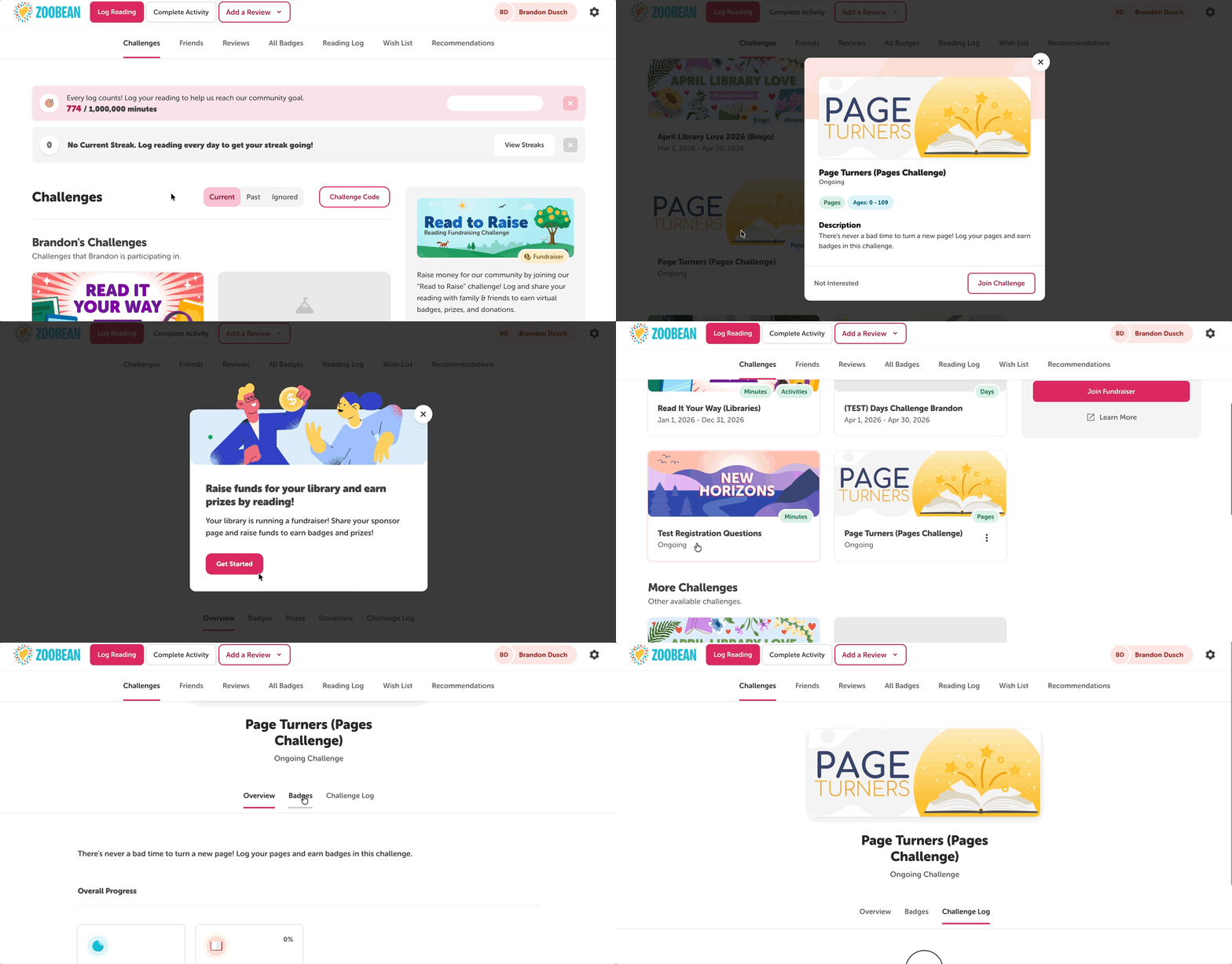 On your reader profile, you can view and register for reading challenges by following the steps below:
-
Log into your Beanstack site.
-
On the home screen, you’ll see a “Challenges” section with a list of challenges you’re already enrolled in.
-
The screen defaults to show you all current and upcoming published challenges available to your age/grade group. To view past or ignored challenges, tap the dropdown labeled “Current” and select either “Past” or “Ignored.”
-
-
Scroll down to the “More Challenges” section, to view other available challenges for joining.
-
Some challenge cards will have labels like “Reading List” and “Minutes” for you to tell what type the challenge is at a glance.
-
-
To learn more about a challenge, click the challenge card to view a brief description along with any included activities and badges.
-
To enroll, select “Join Challenge” button on the bottom-right side of the card.
-
If you’d like to ignore a challenge, select “Ignore” on the bottom-left side of the card.
-
-
This takes you to that challenge’s page, where you can view it’s description, the challenge log, and any tickets, prizes, or reading lists (depending on the challenge type).
Remember, you can click your school’s/library’s icon on the top-left to get back to your home screen to view your list of enrolled challenges!