

Tags: Reports & Insights, Insights, Staff, Reports
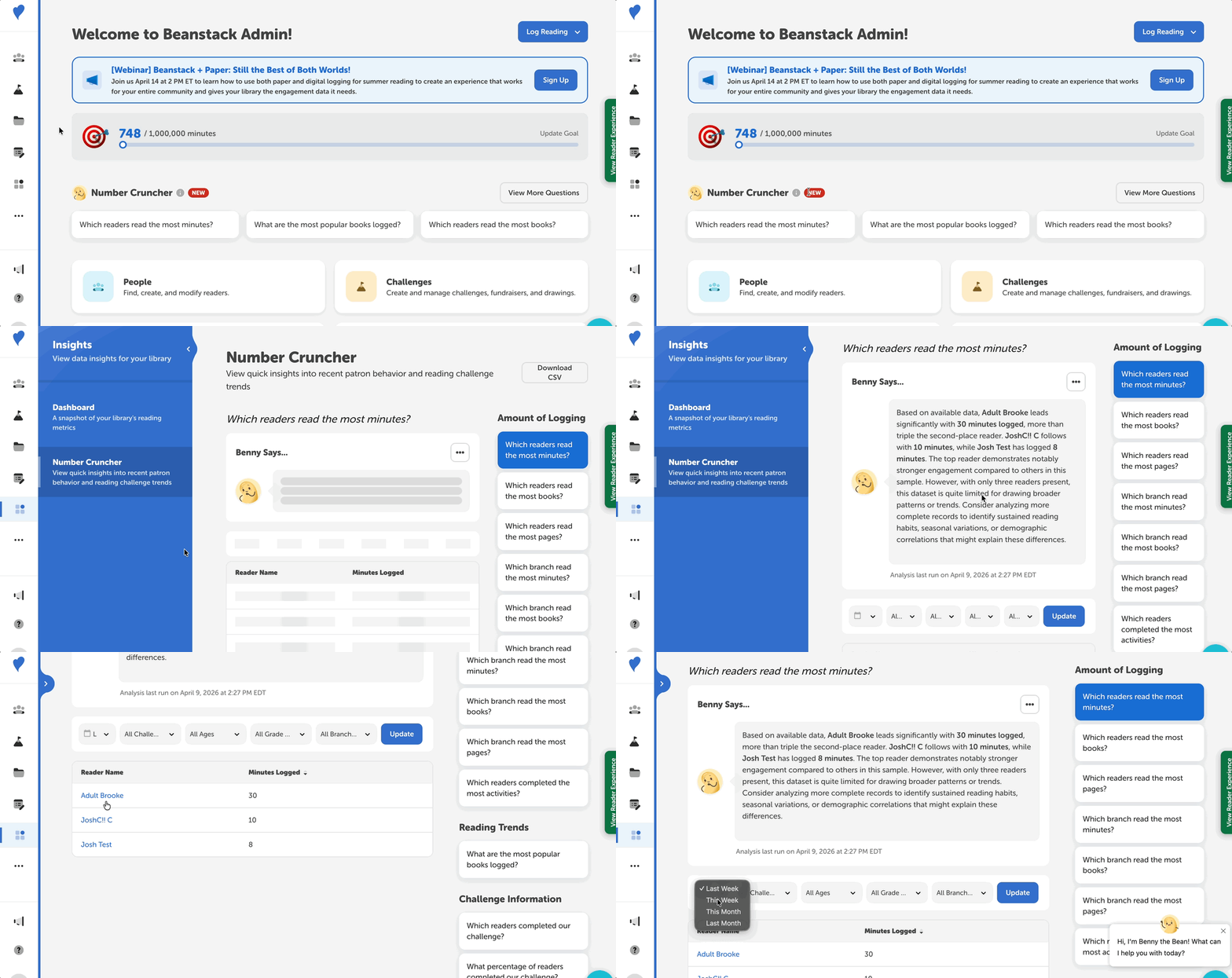
Benny’s Number Cruncher is a brand-new way to uncover quick, actionable reading insights in Beanstack. Instead of digging through multiple reports, you can simply select from pre-made questions like “Which readers read the most minutes?” or “Which readers read the most books?”
Note: This feature is available to all admin roles and includes an AI-powered analysis that can be toggled off by navigating to Setup > Site Settings and unchecking “Enable Number Cruncher Analysis.”
Follow the steps below to use Benny’s Number Cruncher:
-
Log in to the admin view of your school site.
-
On the homepage, you can get quick dashboard access to Benny's Number Cruncher by selecting from one of three recently asked questions. Doing this or selecting "View More Questions" takes you to another screen.
-
-
Navigate to Insights > Number Cruncher, to display a longer list of questions across multiple sections that include reading trends and amount of reading.
-
Select any of the available questions from the sections, including Reading Trends and Amount of Reading.
-
Scroll down to view the response or click "Refresh" to generate a new one.
-
-
Review the results, including:
-
Benny’s AI-powered highlights section.
-
A list of readers associated with the response.
-
You can also adjust filters for time period, challenges, ages, grades, and library branches to narrow down or expand the results.