

Tags: Rostering, ClassLink, Clever
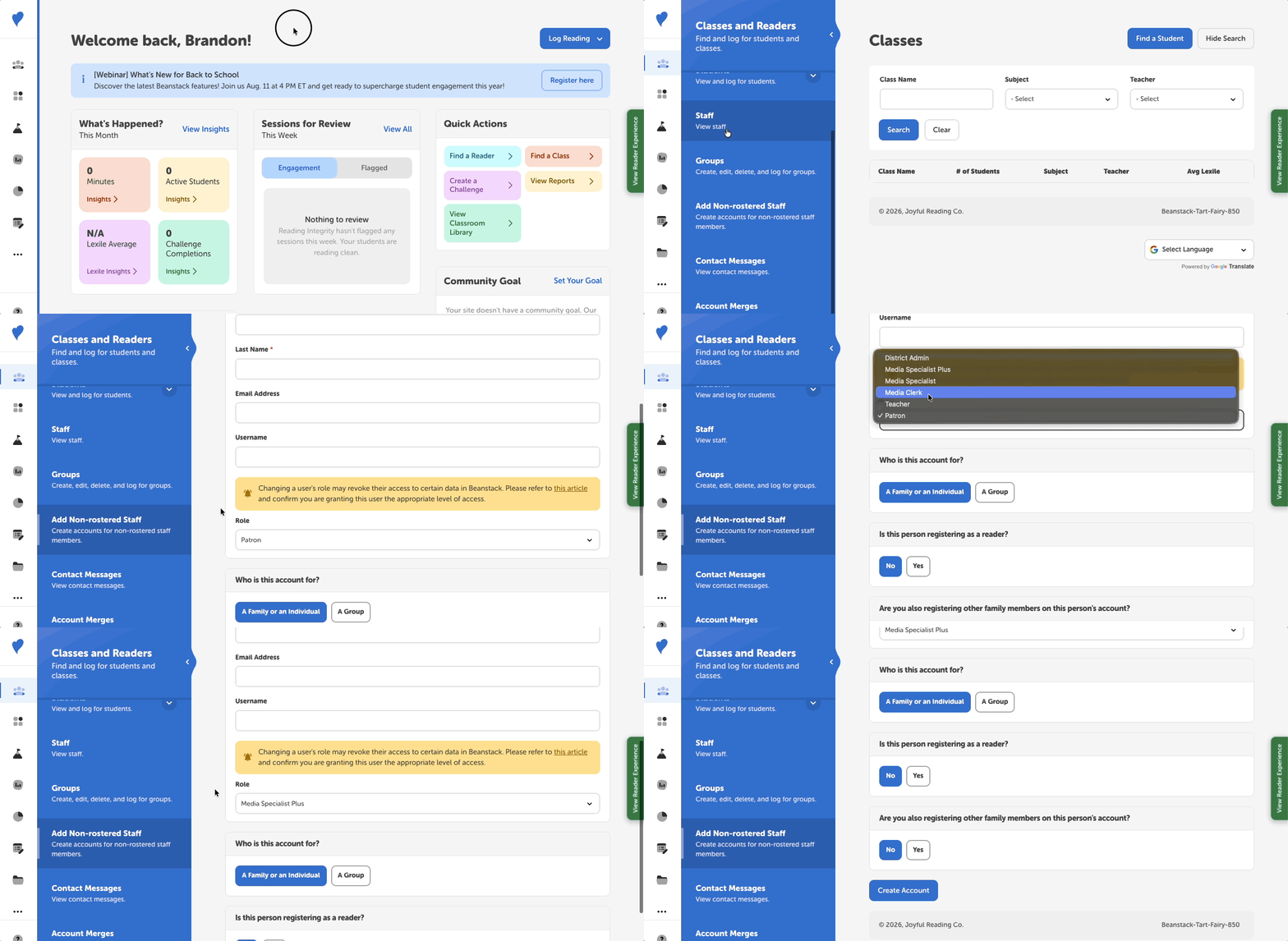 Overview
School administrators can quickly create accounts for staff members who are not automatically synced through their roster integrations (e.g., Clever or ClassLink). This feature allows more people at the school to join reading challenges and participate in a culture of reading!
Who Can Use This Feature
On school sites that use a roster integration, you can add non-rostered staff if you have one of the following permissions:
-
District Admin
-
Media Specialist Plus
You can create an account for any role at or below your own role. For example, if you’re a Media Specialist Plus, you can create accounts with the roles of Media Specialist Plus, Media Specialist, Media Clerk, or Teacher (but not District Admin).
Notes about this feature:
-
Manually-added staff will not appear in leaderboards and some reporting and District Admins/Media Specialists Plus will be informed of this in the warning box when adding the staff member.
-
Do NOT add student accounts here. Readers added manually may not have access to all student functionality (such as leaderboards and automated reporting).
How to Add a Non-Rostered Staff Member
Follow the steps below to add non-rostered staff to your site:
-
Log into the admin view of your school site.
-
If you’re logging into a district site, toggle to the school site you’d like to add a staff member to.
-
-
Navigate to Classes and Readers > Add Non-Rostered Staff.
-
Fill out the required staff contact details.
-
For the username, this is commonly the staff member’s email.
-
-
Select “Create Account.”
Their account should now be created! Remember to share the newly-added staff’s login credentials with them along with the following instructions for logging in:
-
Go to [YOUR UNIQUE SITE NAME].beanstack.org/users/sign_in
-
For example, if your site name is “johnelementary”, go to “johnelementary.beanstack.org/users/sign_in”.
-
It’s important that “users/sign_in” in included so your staff go to the correct login page.
-
If they’re on the mobile app, they’ll need to find their school and then select “Sign In With Username & Password.
-
Staff Role Reference Guide
When creating an account, choose a role based on the staff member's required level of system access. You may only assign roles equal to or lower than your own administrative level. For more information about staff roles and access levels, visit this article.
|
Role |
Access Level & Capabilities |
|
Teacher |
For staff participating as readers only who do not need access to school-wide student data.
|
|
Media Clerk |
Full logging access plus access to school-wide data and reports. |
|
Media Specialist |
Full administrative rights for the school site, including challenge creation and reader administration. |
|
Media Specialist Plus |
Advanced administrative rights for managing site settings, staff permissions, and school-wide data. |