

If your school or district uses a roster service, such as ClassLink or Clever, you can now update your rosters and preview the changes from within Beanstack!
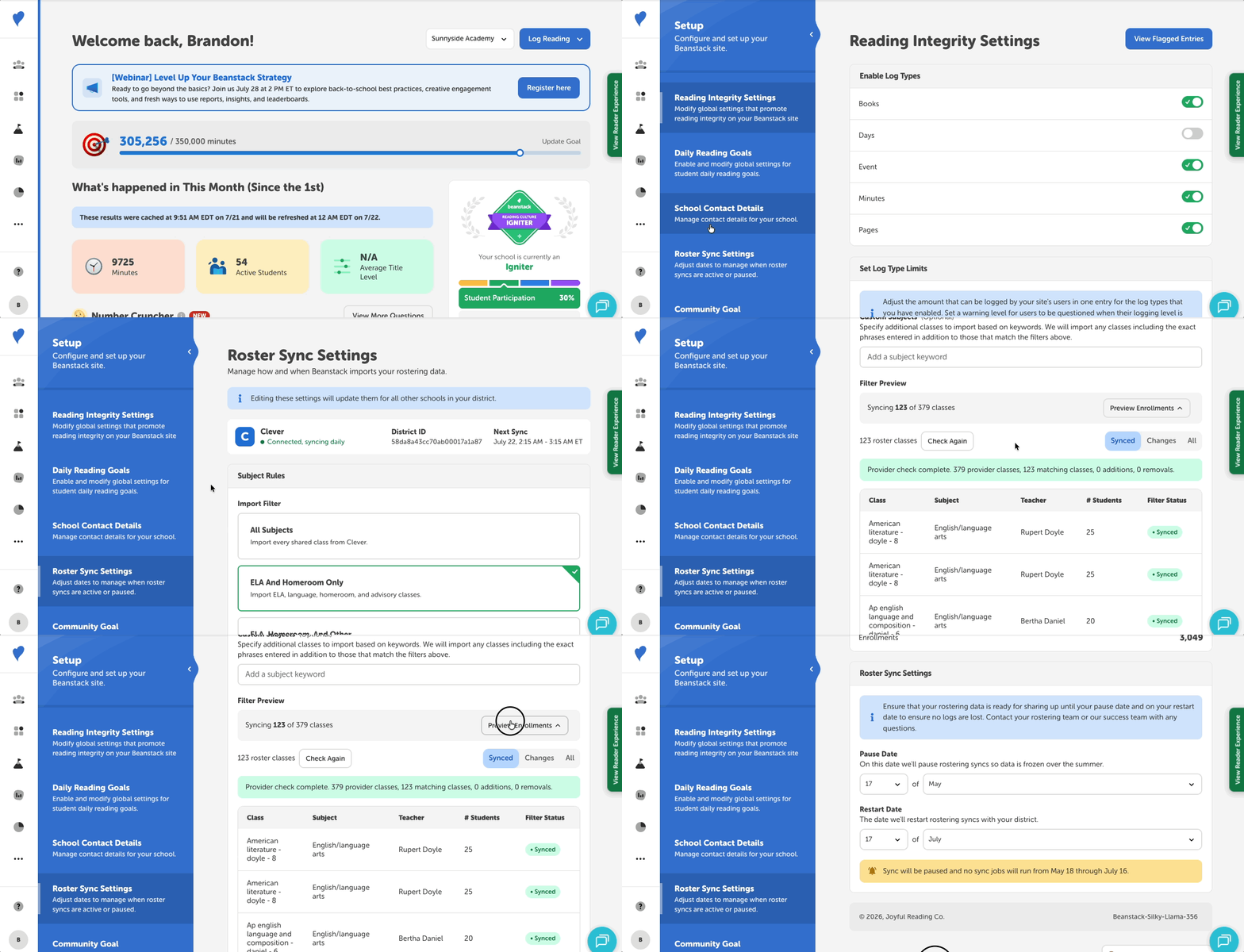
With greater visibility into these settings, your team can move faster during back-to-school and ensure the right people are connected from day one.
Note about User Permissions:
-
This feature is only available to Media Specialists Plus and District Administrators on the admin view.
-
Media Specialist Plus users at schools with access to Beanstack through their district can only preview their rostering settings on Beanstack. If you would like to make any changes, please contact your Beanstack district administrator.
-
District Administrators must make any updates to their rostering settings from their Beanstack district site. All changes made apply across your entire district.
Finding the Roster Sync Settings
Roster Sync Settings Breakdown
Finding the Roster Sync Settings
To preview and update your roster on Beanstack, follow the steps below:
-
Log into the admin view of your school or district site.
-
Navigate to Setup > Roster Sync Settings (schools) or Setup > District Settings (districts).
Near the top of the page, you’ll see:
-
Your roster service
-
The status of your connection and your rostering syncs
-
Timestamps for the last and next syncs (set in the ET timezone)
Roster Sync Settings Breakdown
Use the following settings to update your roster:
Class Import Settings
The following settings allow you to filter out classes you don’t want to appear in your Beanstack site.
Note: These filters are applied district-wide at the class level. If you would like to set more complex filters, this must be done through your rostering service. We recommend contacting your district’s rostering team.
Select Class Filters
Choose which classes to import based on the subject. The available options are:
-
All Subjects - Import every class shared from your roster service.
-
ELA and Homeroom Only (default) - Import ELA, language, homeroom, and advisory classes
-
ELA, Homeroom, and Other - Import ELA, language, homeroom, advisory, and other classes
Custom Subjects (Optional)
Use keywords and exact phrases to specify additional classes to import based on the class names
Filter Preview
Preview all classes, teachers, and students that would be imported based on their current settings.
Latest Sync
This section lets you view a summary of the total teachers, students, classes, and enrollments available in Beanstack from the last roster sync.
This also includes a summary of deactivated users. Deactivated users are students or teachers who were previously included in your rostering data.
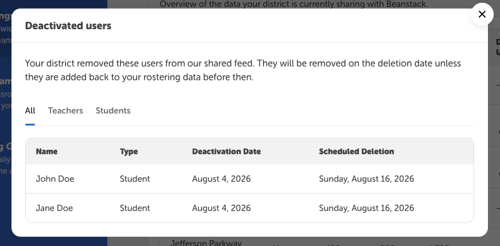
To view all deactivated users and their deletion dates:
-
Select the blue “x deactivated” text located on the data table.
-
On district sites, this is under the “Deactivated Users” column and next to a school name.
-
On school sites, this is next to the “Teachers” and “Students” labels.
-
-
Use the “All,” “Teachers,” and “Students” tabs to review the deactivated users, including their deactivation dates and scheduled deletions.
Roster Sync Settings
This section lets you pause and restart your roster’s sync with Beanstack during the summer. This ensures that:
-
Rostering data is ready for sharing up until your pause date and on your restart date.
-
No logs are lost during the summer break.