

Tags: Students, Friends, Leaderboards
To use this tab on the mobile app, check out this article.
Once you've turned on your site’s Friends and Leaderboards feature, students can add friends by inviting people from within their school, and view their reading progress.
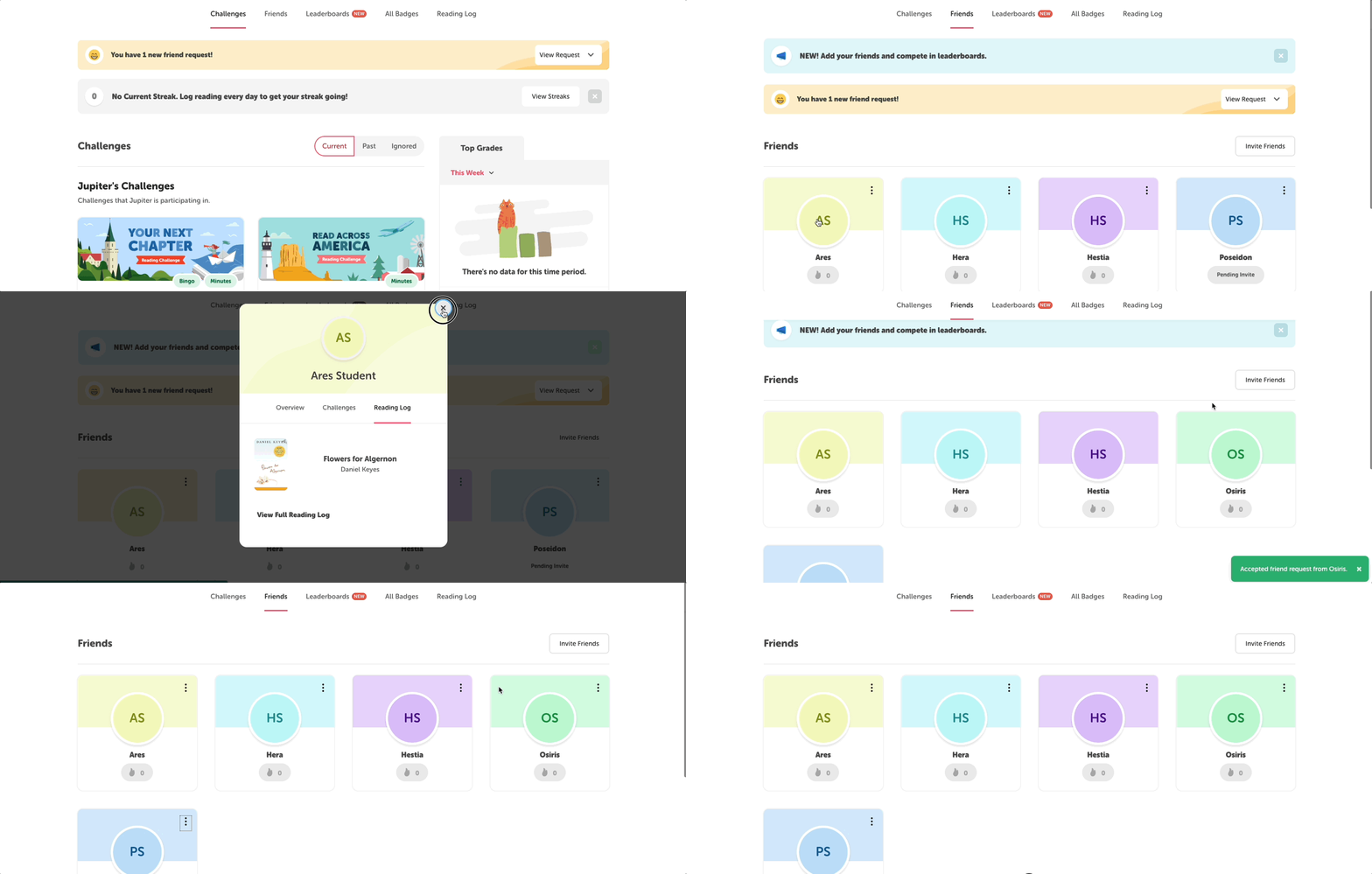
On the main navigation bar of the web version, select the “Friends” tab (located between the “Challenges” and “Leaderboards” tabs). Then, visit one of the following sections for using this tab:
How to view friends’ reading activity
How to invite friends
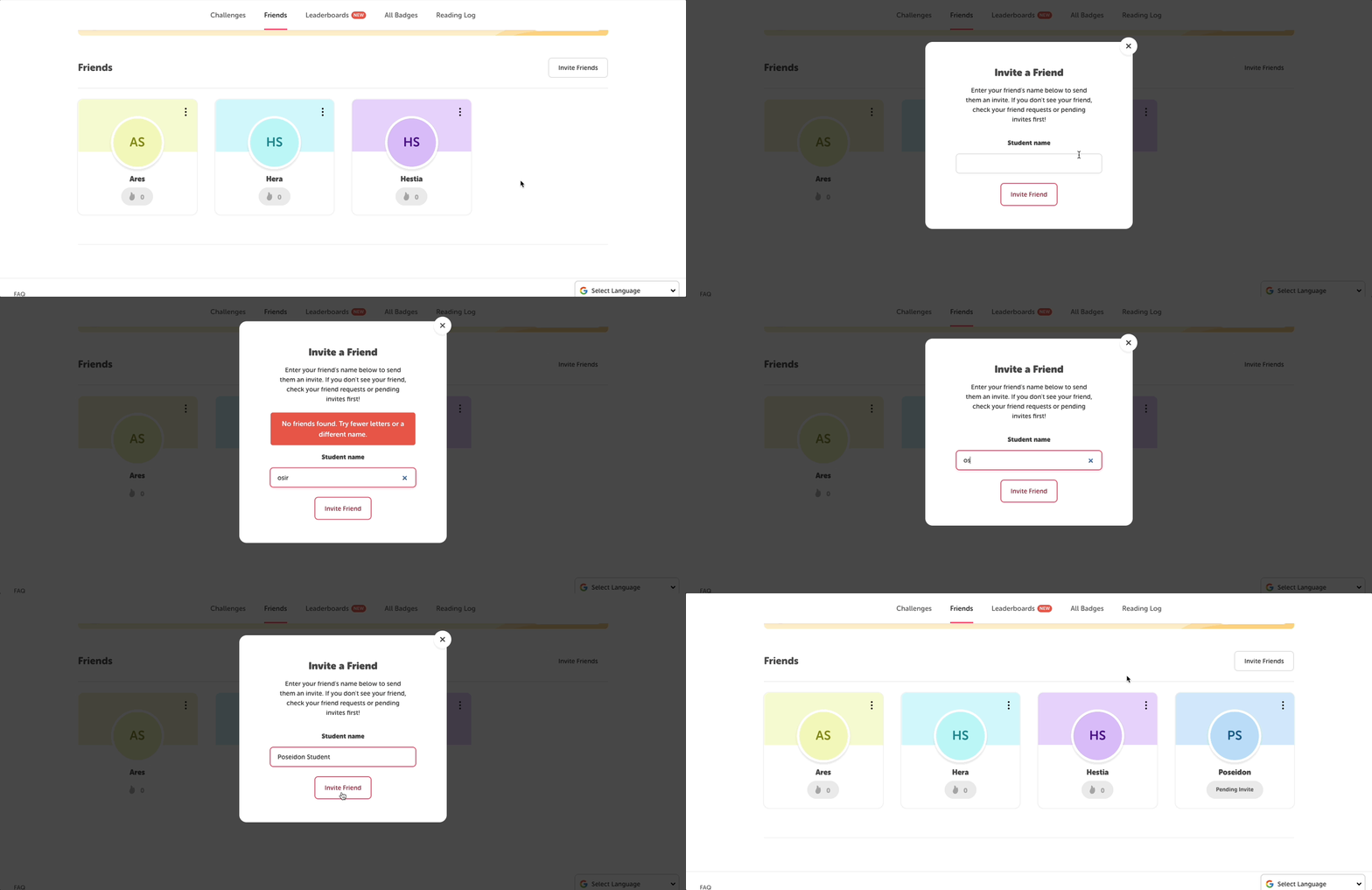 Students can invite other classmates at their school to be their friend by doing the following:
-
Click the “Invite Friends” button.
-
Search for friends by name.
-
Click “Invite Friend” to send a friend invitation.
-
While that invitation is pending, it will appear on their friends screen with a note reading “Pending Invite.”
-
Note: Students will see a privacy notice informing them that friends can see their reading activity, like the titles they log and the badges they earned. They must confirm before adding friends.
Other Functionality Notes:
-
Students can view a friend’s reading statistics once the user accepts the invitation. If a user denies the invitation, the pending invite will disappear from both students’ friends pages without a notification.
-
There is no limit to the number of friends a student can have.
-
Students can only friend other students in their school but not from their whole school district.
-
If a student changes schools, they will get a new profile and will not retain any friends from their previous school.
-
If the Allow Student-Teacher Friends setting is on, students may add other teachers as friends. Please keep in mind that this may allow students and teachers to appear in the same leaderboard and view recently logged books.
How to cancel an invitation
A student can cancel an invitation by clicking the three dots by the invited friend’s name and selecting “Cancel this Invitation.”
How to accept friends
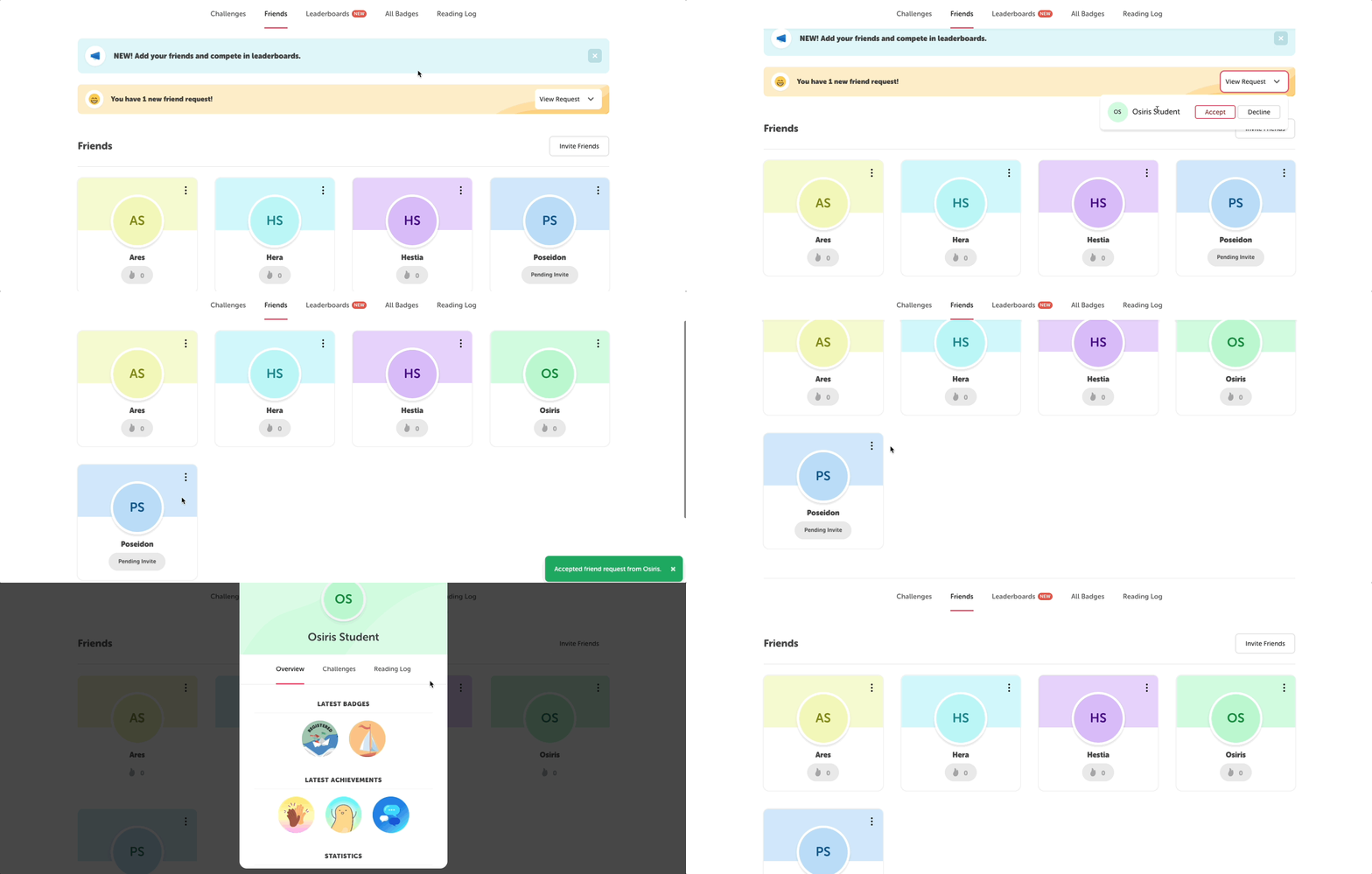 When a student has received a friend request, a yellow banner will appear at the top of their screen.
To accept or decline friend requests, they can click “View Request(s).” If they decline, they will be asked to confirm their decision before the invitation is removed.
How to remove friends
A student can remove a friend at any time by clicking the three dots by that friend's name and selecting “Remove Friend.” A window will pop up asking the student to verify that they want to remove that friendship. The student must click “Remove” to finalize.
How to view friends’ reading activity
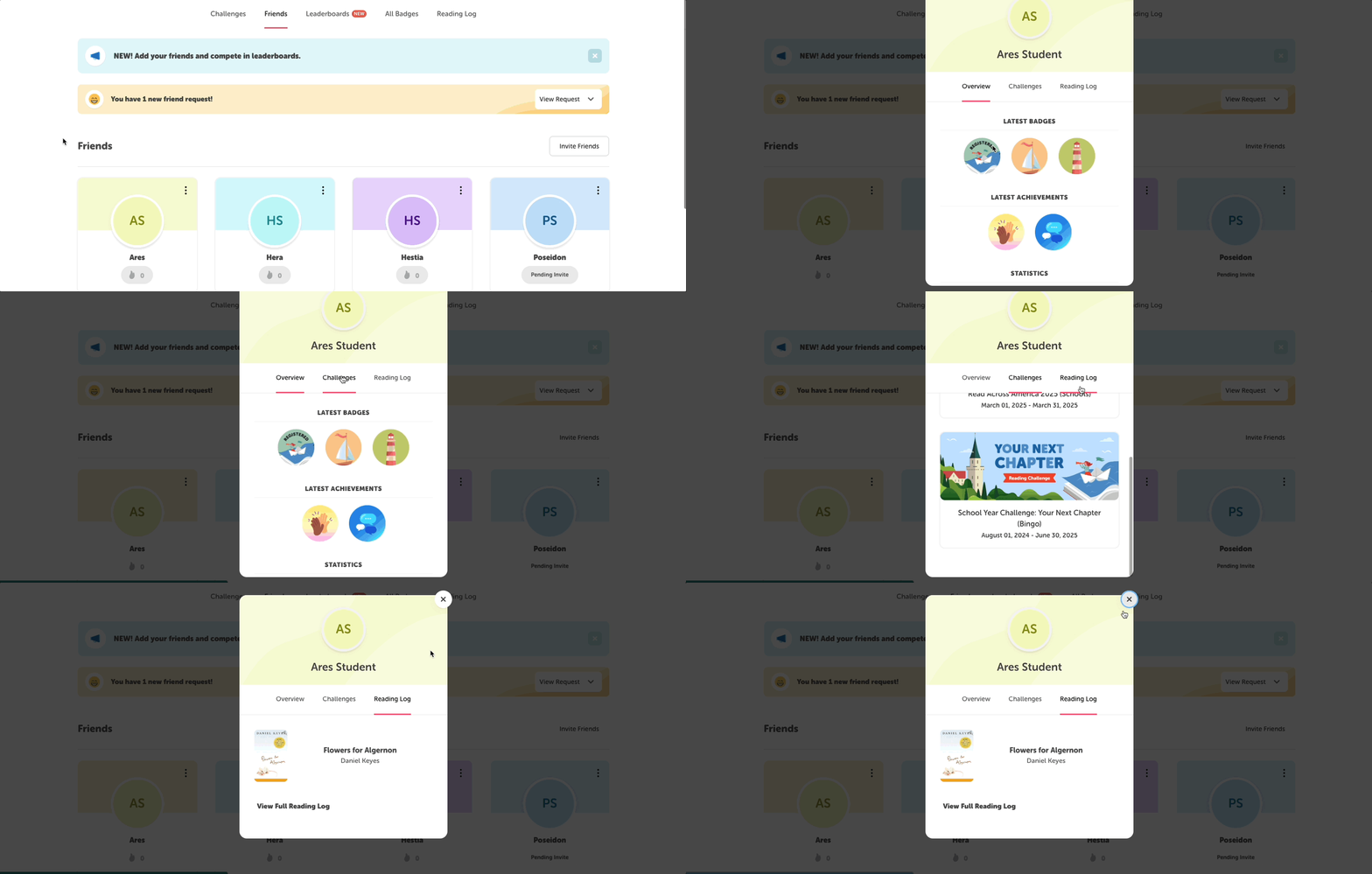 A student can view their friends’ reading activity on the friends screen by clicking the three dots in the upper righthand corner of the friend’s name card and selecting “View Friend” (web only) or by clicking directly on any confirmed friend’s image (web and mobile). This will open a pop-up window showing that friend’s four most recently earned badges and either their total minutes logged, total books logged, or both, depending on your site settings. They can click over to “Challenges” to see the current and past challenges in which that friend participated or to “Reading Log” to see the book titles that friend has logged.