
You can add time restrictions to badges if you want readers to have to earn certain badges within a specific timeframe during the overall challenge duration.
Note: There’s no need to time-restrict a badge to a challenge’s start and end dates since all of a challenge’s badges must already be earned between those dates.
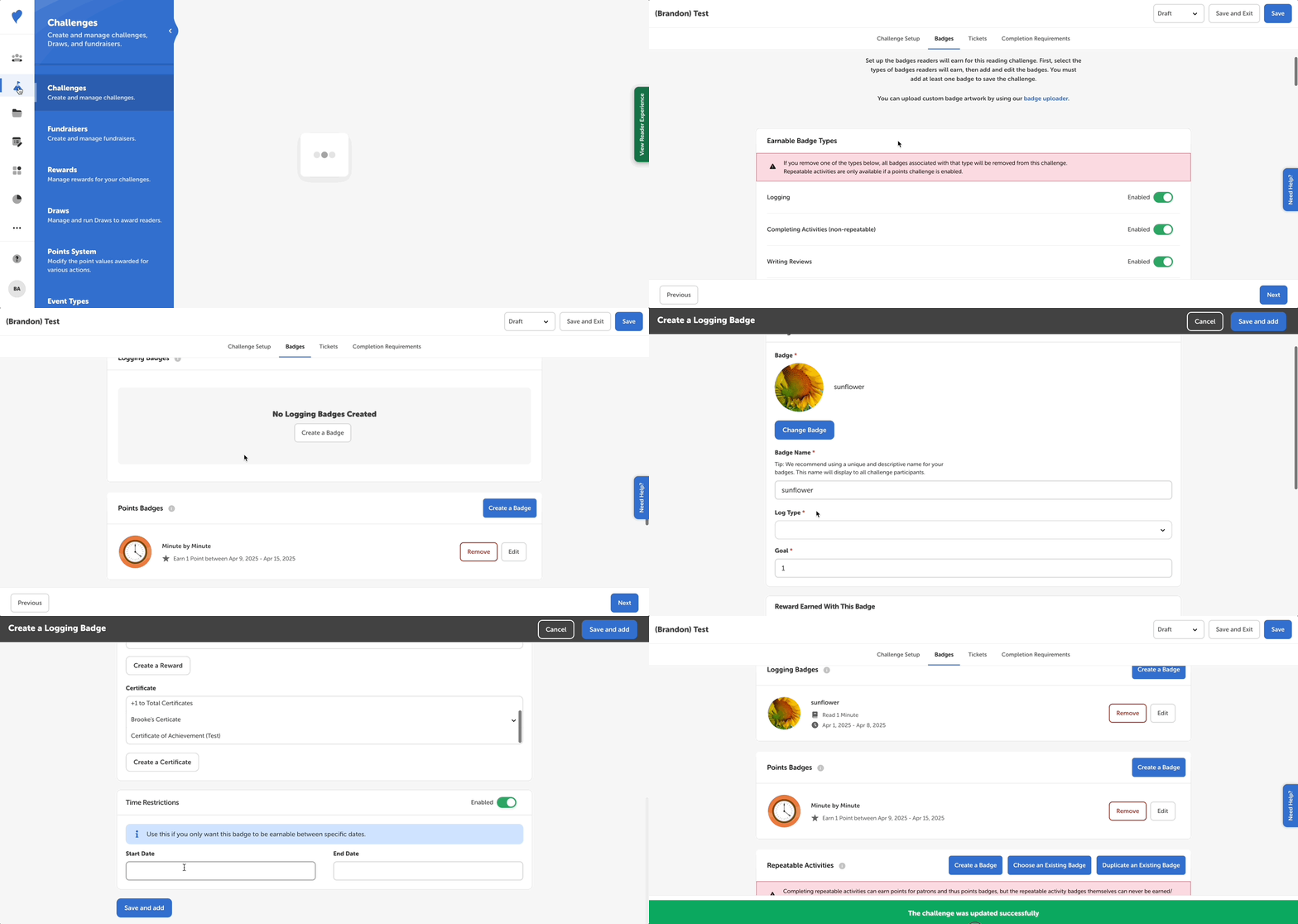
To add time restrictions to your challenge‘s badges:
- Log in to the admin view of your site and go to Challenges.
- Click on a challenge draft and go to the “Badges” tab.
- Create or edit a badge.
- Enter badge info such as the name, goals, and rewards.
- Set the start and end dates in the “Time Restrictions” section.
- Click “Save.”
Below, you‘ll find more information about how date restrictions affect different badge types:
Logging badges
Review badges
Activity badges
Points badges (Libraries Only)
Logging badges
When you add date restrictions to logging badges, logging within that challenge changes from cumulative to episodic.
- With cumulative, non-restricted logging, logging badges build on each other, i.e., 2 hours, 4 hours, 6 hours, etc.
- With time-restricted logging, logging badges should be set for the same amount of time over consecutive weeks, i.e., 2 hours between Jan. 1 and Jan. 7, 2 hours between Jan. 8 and Jan. 14, 2 hours between Jan. 15 and Jan. 21, etc.
Note: There should be no overlapping dates or gaps between badges. If there are, this can cause a reader‘s logged units to count toward two badges or not count toward a badge at all.
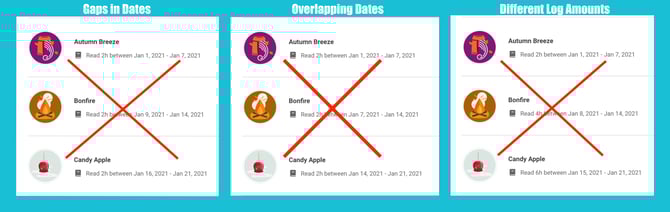
Review badges
When you add time restrictions to review badges, only reviews submitted within that timeframe will count toward earning that review badge. Just like with logging badges, adding time restrictions to review badges changes them from cumulative to episodic. If you include overlapping dates or gaps between dates on time-restricted review badges, reader‘s reviews could count toward two badges or not count toward any badge.
Activity badges
When you create or edit an activity badge, scroll down to the question “Would you like to restrict the completion of activities to certain dates?” and toggle it to Enabled. Activities will be available to be completed on the start date, on the end date, and any day in between those two dates.
You can create weekly, monthly, or even daily activity badges alongside un-restricted activity badges.
Note: Unlike with restricted logging and review badges, it‘s OK to have overlapping dates or gaps between the dates on restricted activity badges.
Points badges (Libraries Only)
We recommend against using time restrictions with points badges, as it complicates the points-earning structure and can confuse patrons and staff. If you have questions about a points challenge setup, refer to this article or reach out to our helpdesk.