
Tags: Points, Challenges, Libraries
Note: Points are only available for library sites. They are not supported on school sites. To learn more about challenges, including setup and badges, visit Beanstack for Everyone.
If you want to create a challenge that allows people to achieve different levels by doing different things, a points challenge is probably for you! For a points challenge, you add a point value to different actions on your site. Earning a set number of points unlocks the challenge’s points badges.
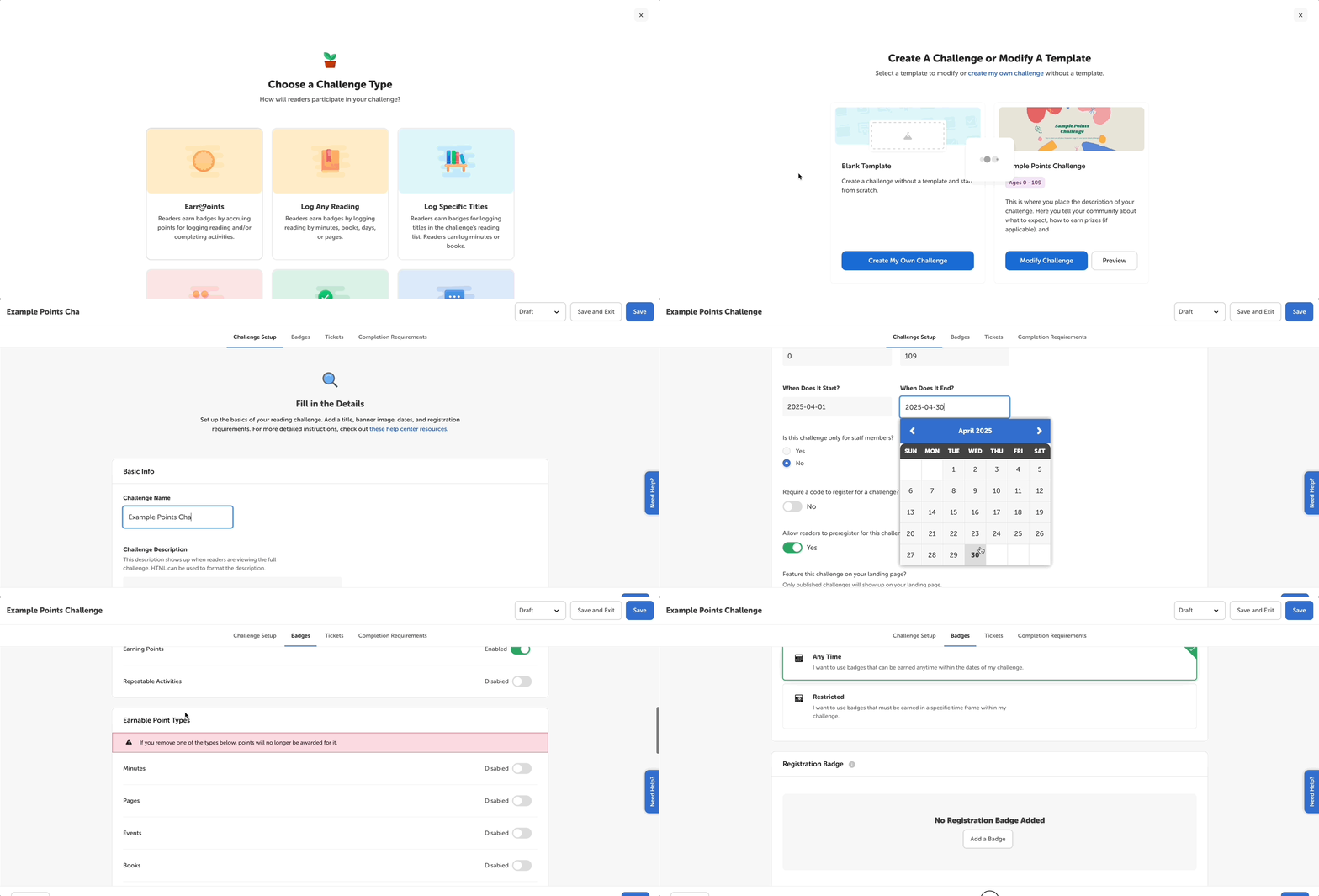
Important notes before setting up your points challenge:
-
Points will not be awarded retroactively. Points cannot be awarded until someone is enrolled in the challenge. Previous activities will not trigger points, even if it was during the dates of the challenge.
-
Confirm that points are active on your site by following the steps in this article.
-
Set up your site’s point values by following the steps in this article. Although you can select active point types per challenge, their point values are universal.
-
We strongly recommend against adding logging and review badges to your points challenge. This can confuse readers and create a redundant challenge setup, since logging reading and writing reviews can also earn readers points toward earning points badges. Instead, enable reviews and any desired log types as earnable point types, which is explained in depth below.
Now, on to points challenge creation!
-
Log in to the admin view of your site.
-
Go to Challenges and click “Create a Challenge.”
-
Select “Earn Points” for the way in which people can earn badges and click “Next.”
-
Choose “Completing Non-Repeatable Activities” and/or “Completing Repeatable Activities” if you also want to add activity badges too.
-
-
On the next screen, select “Create My Own Challenge” to create your challenge from scratch or select a challenge template to load and modify.
-
Customize all your setup details within the first “Challenge Setup” tab. Refer here for more details about each setting available to you.
-
Click the “Badges” tab so you can add and edit the earnable badge types, earnable point types, and individual badges.
-
Ensure “Earning Points” is toggled on as an earnable badge type, and then select the way(s) you want readers to earn points.
-
Leave “Logging” and “Writing reviews” disabled as earnable badge types, since you’ll be awarding points for reading and reviews instead of stand-alone badges.
-
-
Choose earnable point types for your badges such as minutes, activities, and reviews.
-
We always recommend adding a registration badge. To do so, click “Add a Badge” under “Registration Badge,” select your badge image, and then set up any attached registration rewards.
-
For a monthlong challenge, we recommend adding at least 10 points badges in attainable increments that build on top of each other. To add your points badges, follow the steps in this article.
-
Add any activity badges or repeatable activity badges and then click “Next.”
-
Next, click the “Tickets” tab to set up a set up a ticket drawing. This is optional; if you’re not using tickets, you can ignore this step! Otherwise, see this article to set up a ticket drawing.
-
Lastly, click the “Completion Requirements” and select one of the following:
-
“Require All Badges” if you want readers to earn all the badges in the challenge in order to complete it.
-
“Require Specific Badges” if you want to select which badges readers must earn.
-
“Require Some Badges” if you want to set a number of badges readers must earn, within which you can also pick specific badges.
-
Note: If your challenge includes a completion badge, readers will be notified when they hit the completion requirements by earning the completion badge. If your challenge does not include a completion badge, then you and your staff will be able to track completions in Insights and Reports, but readers will not be notified of completing the challenge when they hit the completion requirements.
-
-
Keep your challenge in draft mode while you’re finalizing and testing the details.
-
Either click “Save” to keep editing your challenge or “Save and Exit” to go back to all your challenges.
-
-
To publish, click the “Draft” dropdown, select “Published,” and then click “Save.”
Note: Once you save a challenge in a published state, it is live on your site!