

Tags: Challenges, Setup
You can only activate and edit challenge templates that use log types toggled on your site. Most Beanstack sites use minutes and/or books as log types, so most of the Beanstack original challenge templates are created with a minutes-logging version and a books-logging version. The log type is often noted at the end of the challenge template title, like “For the Love of Reading (Minutes).” You can also use the filter dropdown-menu to only view templates of a certain log type.
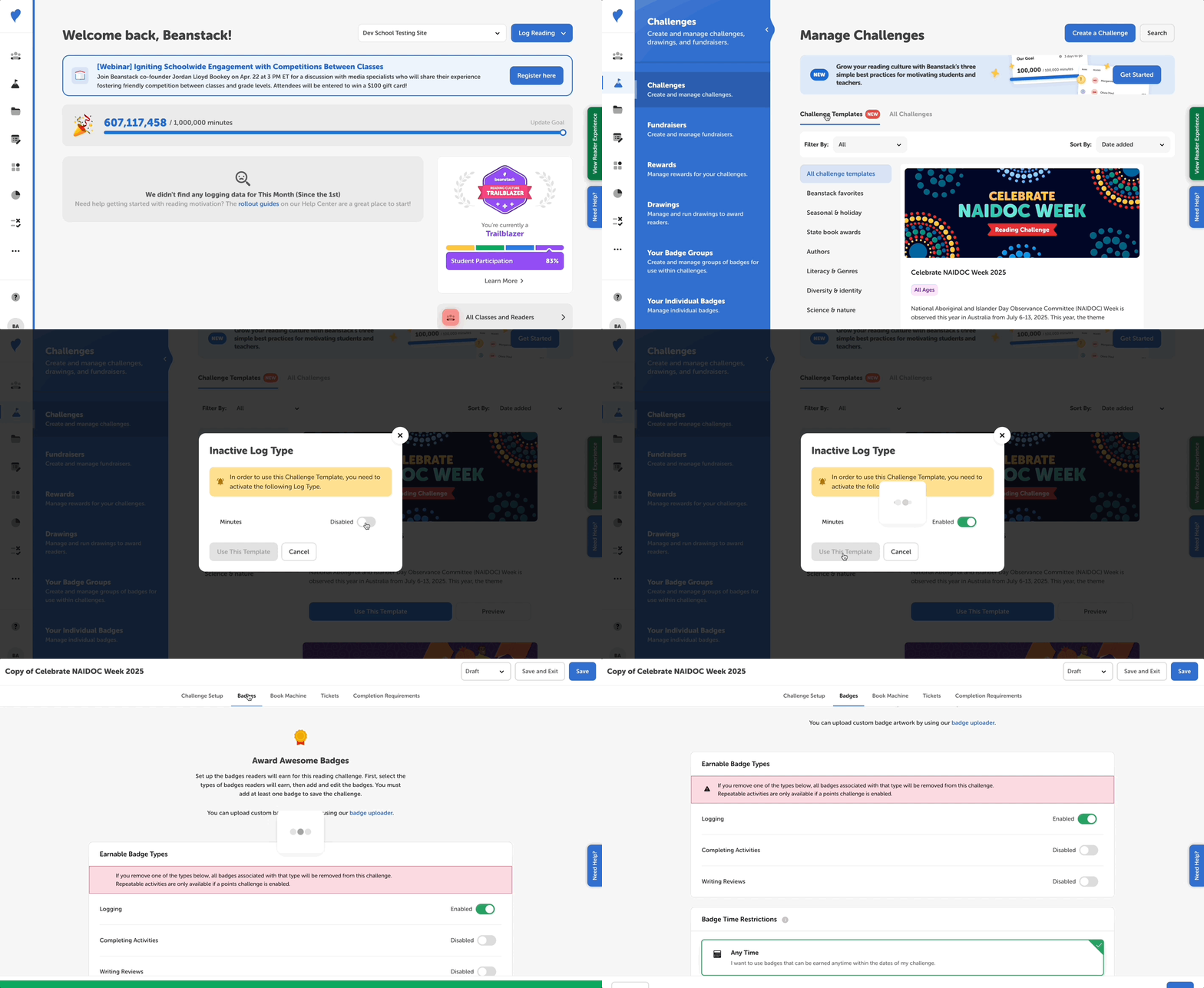
If you click “Use This Template” to activate a challenge template that uses a log type not currently active on your site, you will see pop-up window where you can activate that log type on your site and load the challenge template into your Challenges dashboard. Doing so will make that log type available for readers to log on your site and for you to use in logging badges within challenges.
You can then decide to keep that new log type active on your site and within that challenge or you can edit the challenge’s log type and deactivate that log type on your site by following the steps below:
-
Within the challenge template newly loaded on your site, click over to the Badges tab and scroll down to the logging badges section.
-
Edit each logging badge to change the log type and goal, and then save. You may also need to edit the challenge description and title to avoid confusion. Once done, save the challenge.
-
Navigate to Setup > Logging Settings (libraries) or Setup > Reading Integrity Settings (schools), and uncheck the log type you don’t want to use on your site.