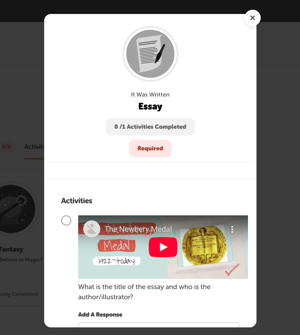
The Beanstack web and mobile apps support embedding one video per activity within activity badges. We support major video platforms like YouTube, Vimeo, Facebook, and Instagram.
Note: We do not support embedding videos in other editable fields in your challenge or site.
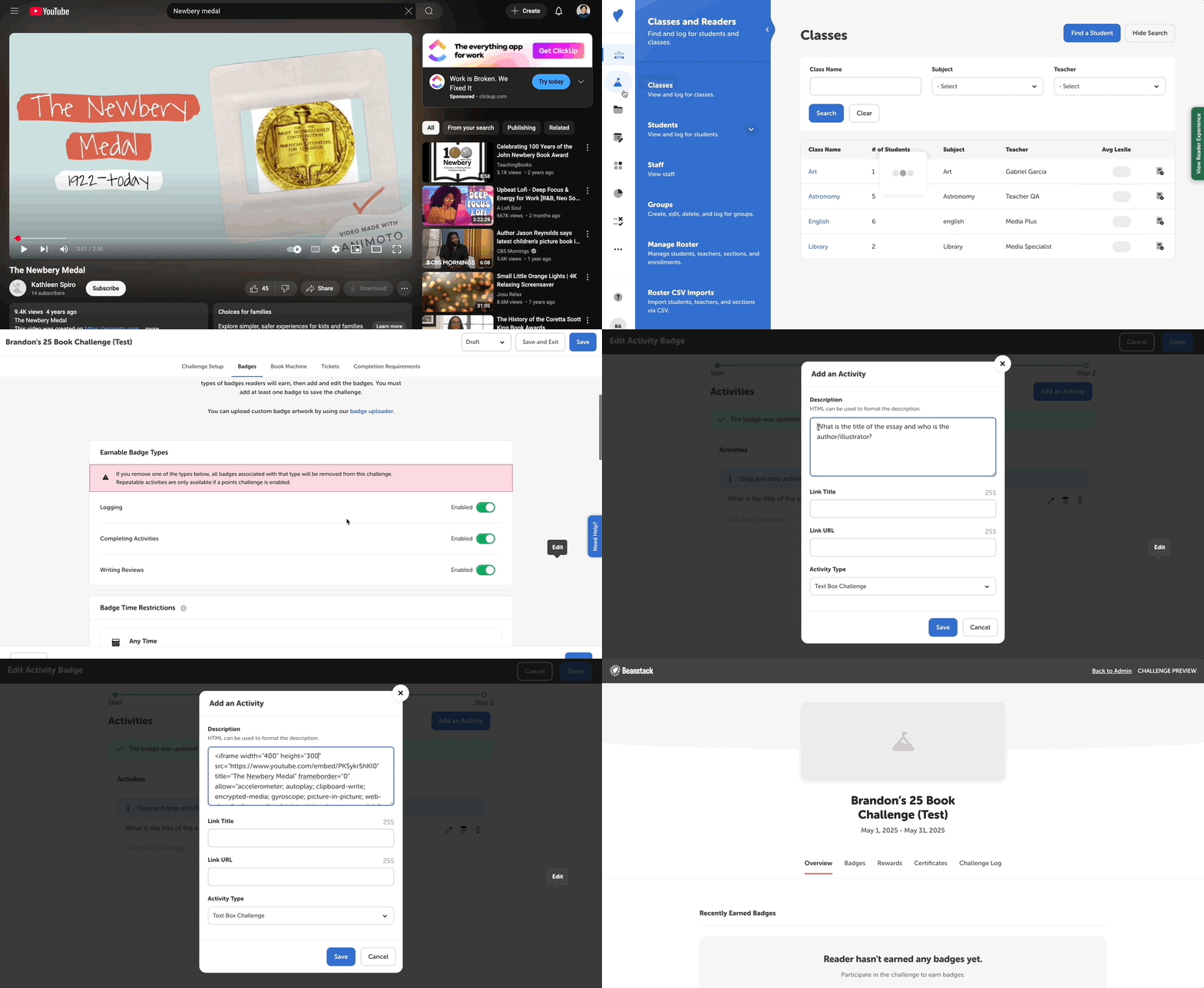
Follow the steps below to add a video to display directly to readers in an activity:
-
Identify the video you’d like to use and copy its embed code. This can often be done by navigating to the public video URL, right-clicking the video, and selecting “Copy Embed Code.” The embed code will start with “<iframe ...”
-
Log in to the admin view of your site.
-
Navigate to Challenges, and select the one you’d like to edit.
-
Select the “Badges” tab, scroll down to the “Activity Badges” section, and create or edit an activity badge.
-
Once you finalize the badge’s basic information, click “Save” to move to the activities screen.
-
Click “Add an Activity” or click the pencil icon to the left of an existing activity to edit it.
-
Within the description, add the activity directions and then paste the embed code.
-
Finish editing your activity by optionally adding a link title and URL, selecting the activity type, and making your points selection if it’s in a points challenge. Then click “Add” or “Save” and then “Done” to save the entire badge.
-
Be sure to save the challenge before exiting, and then preview it on both the web and mobile app to make sure the video embed displays correctly. If it doesn’t, you can edit the activity description and change the “width” and “height” dimensions within the embed code.
-
A width of 400 and a height of 300 generally displays well on the web and mobile apps.
-