

Tags: Reading Integrity
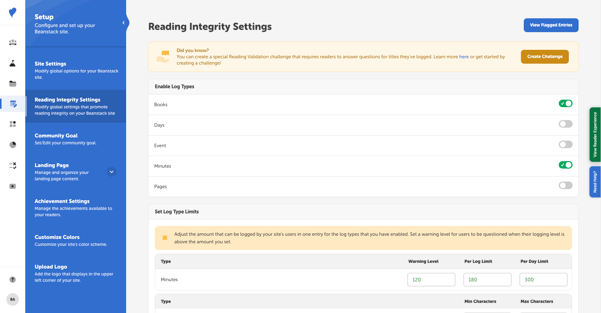
Beanstack has many features and settings to help school administrators promote reading integrity in their community. Learn about these settings below, which are found in Setup > Reading Integrity Settings.
Note: These settings are visible to Media Specialists Plus and District Admins, and some affect both student and staff accounts (e.g., character counts) while others do not affect staff accounts (e.g., log limits). Additionally, they do not apply to reading imports from Epic! For more info, check out this article.
Table of Contents
Log Warning Levels and Log Limits
Review Minimum and Maximum Character Count
Enable Log Types
This section lets you select which log types can be logged by staff and students on your school site. Learn more about how to toggle log types in this article.
Log Warning Levels and Log Limits
Beanstack’s log warning levels, log limits, and daily limits can help catch cases of fraudulent logging before they occur.
To update these settings:
-
Scroll down to “Set Log Type Limits.”
-
Enter a log warning level and/or log limit level for your log types then scroll to the bottom of the page.
-
Click “Save.”
A note for staff:
School staff have the ability to bypass logging restrictions set for students under the following scenarios:
-
On the admin view
-
Staff can bypass all logging restrictions when logging for themselves or for their students.
-
-
On the reader view:
-
Staff can bypass all logging restrictions when logging for themselves or for their students but cannot log more than 600 minutes in a single log.
-
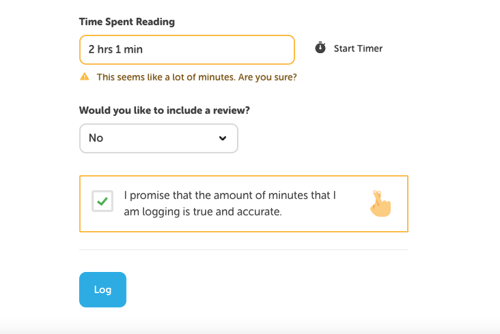
Warning Level
Setting a log warning level for a specified number of reading units displays a warning and an extra verification check to students who log more than your limit in a single session. For instance, if you set the log warning level for minutes on your site to 120 minutes, any student who logs more than 2 hours in one reading session will see a warning message. They must then confirm that their log is true and accurate before proceeding.
If you would like to disable this feature, simply set the warning level to 0!
Note: For schools with Book Talks with Benny, a conversation with Benny is triggered by students in 3rd grade or above, who log a Lexile level book above the set Log Warning Level.
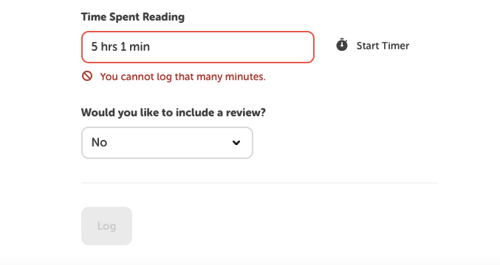
Per Log Limit
Setting a log limit completely restricts students from logging above the limit in a single reading session. If, for example, you set the log limit to 300 minutes, any student who tries to log more than 5 hours in one reading session will be unable to add the reading to their log.
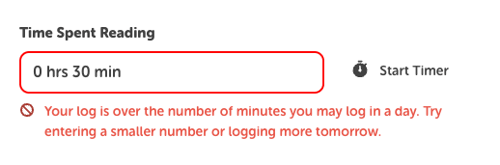
Per Day Limit
Setting a daily logging limit completely restricts students from logging above the limit in a single day. This daily total resets at midnight, and is calculated based on the day the reading is logged for. This means that backdated reading is included in the daily limit.
If, for example, the log limit is set to 300 minutes, any student who tries to log more than 5 hours in one day will run into the daily limit and be unable to add the reading to their log for the remainder of the day.
Note: Media
Review Minimum and Maximum Character Count
Reviews can be a fantastic way to prompt students to engage deeply with their reading material in positive and self-driven ways. Setting a minimum number of characters required for a review can encourage students to derive meaningful insights from their reading.
To set these values on your site:
-
Scroll down to the Set Log Type Limits section.
-
Enter the minimum and maximum number of characters in the row labeled “Reviews.”
-
Click “Save” at the bottom of the page.
Friends & Leaderboard Options
Friends and leaderboards are a great way to build social accountability into your Beanstack site.
-
Friends Settings
-
Display Friends: If this setting is toggled on, students may add friends on Beanstack. The other student must accept the friend invite for two students to become friends on Beanstack.
-
Display Friends Leaderboards: If this setting is toggled on, students can view the Friends Leaderboard, which displays a leaderboard of their friends with the most minutes or books logged for a given time period.
-
Display Logged Books to Friends: If this setting is toggled on, students can see their friends’ recently logged books.
-
Allow Student-Teacher Friends: If this setting is toggled on, students and teachers may add each other as friends. Please note that depending on the settings above, this may mean students can see teachers on their leaderboards or view their most recently logged books.
-
-
Reader Leaderboard Settings
-
Display Books: If this setting is toggled on, all leaderboards on your site will be available based on books logged. Please note that if you use challenges with the books logging type, we recommend you turn this on.
-
Display Minutes: If this setting is toggled on, all leaderboards on your site will be available based on books logged. Please note that if you use challenges with the minutes logging type, we recommend you turn this on.
-
Don’t forget to click “Save” to apply any changes you made.
Additional Integrity Settings
You can also set additional rules on your site to discourage dishonest logging.
-
Require Book Title: If this setting is toggled on, students must input a book title when logging reading. This is a site-wide setting and not a challenge-specific one, meaning that it will affect all logging on the web, no matter what challenges the students are enrolled in. Please note, however, it does not affect logging on the mobile app, where students can always choose to log with or without a title.
-
Restrict Back-Dated Logging: If this setting is toggled on, students can only log reading for up to 1-90 days in the past. By default, the time frame is 90 days, but Media Specialists Plus can customize this.
You can toggle on or off these settings in the Additional Integrity Settings section. Make sure to click “Save” at the bottom of the page afterward.