Tags: Registration, Libraries, Setup
On any site that uses books as a log type, the default setting is for readers to log one book at a time. If you’d like readers to be able to log multiple books at once, you can activate “batch logging.” This site-wide setting allows readers to log up to 100 books in one log entry, regardless of what challenge they are enrolled in.
-
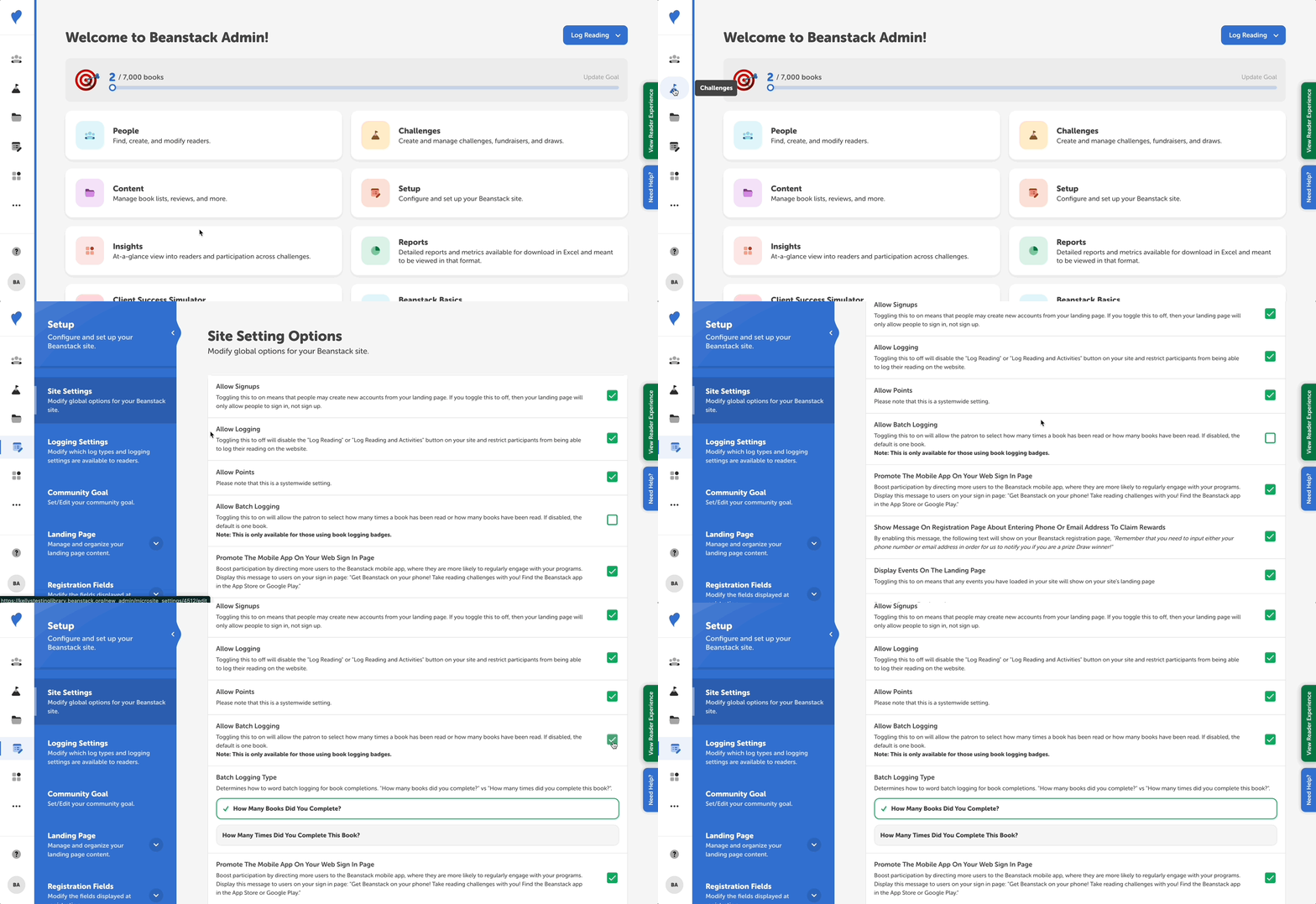
Log in with your admin account.
-
Navigate to Setup > Site Settings.
-
Scroll down to the “Allow Batch Logging” option and check the box to its right to activate the setting.
-
Select the batch logging type.
-
Click “Save.”
Note: If “Allow Batch Logging” is enabled, the “Require Book Title” option will not be visible (and vice versa).
Batch Logging Type
How Many Books Did You Complete?
If you select “How Many Books Did You Complete?”, readers on the web will see a prompt asking how many books they completed on their logging form, followed by optional fields for the title and author.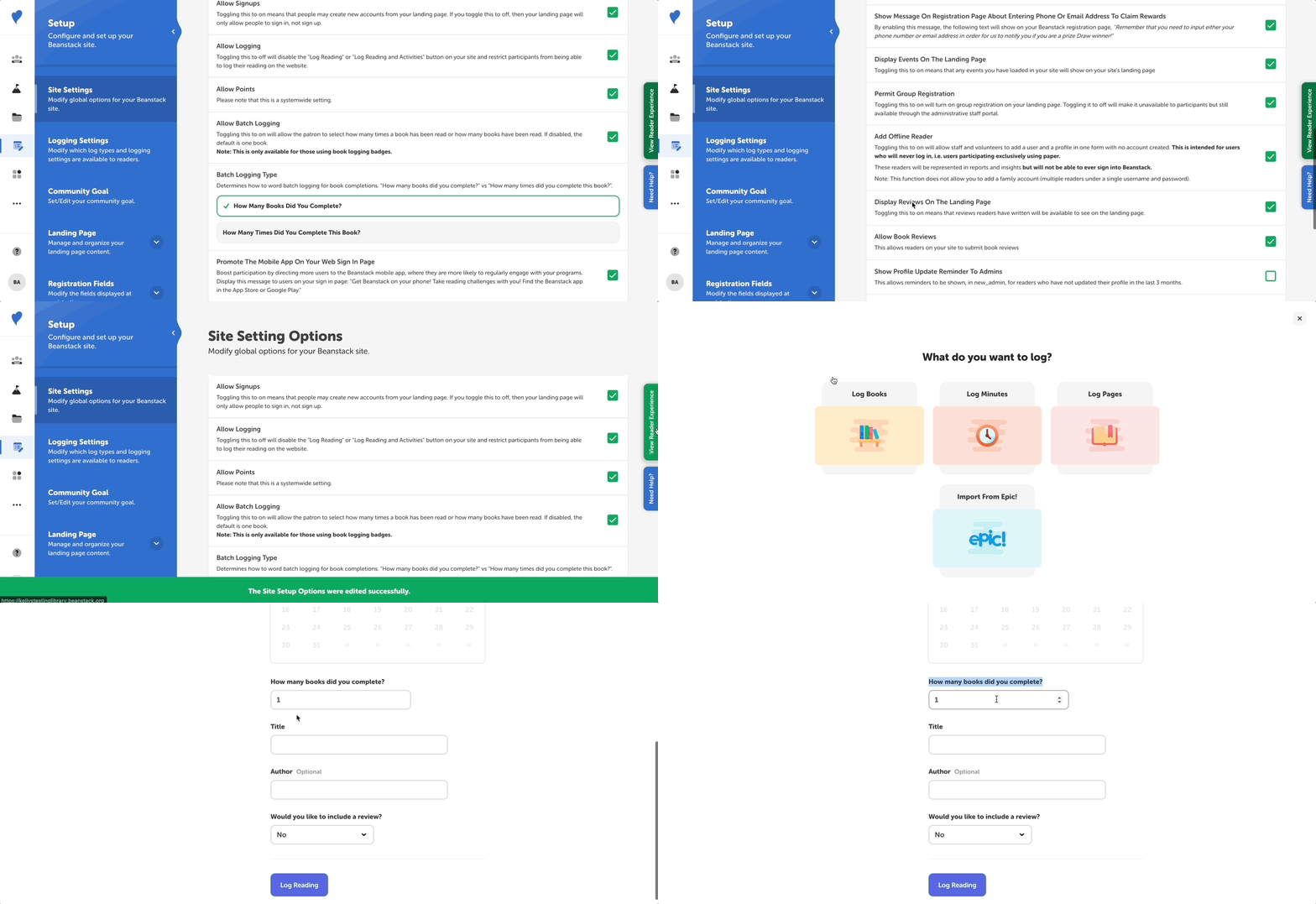
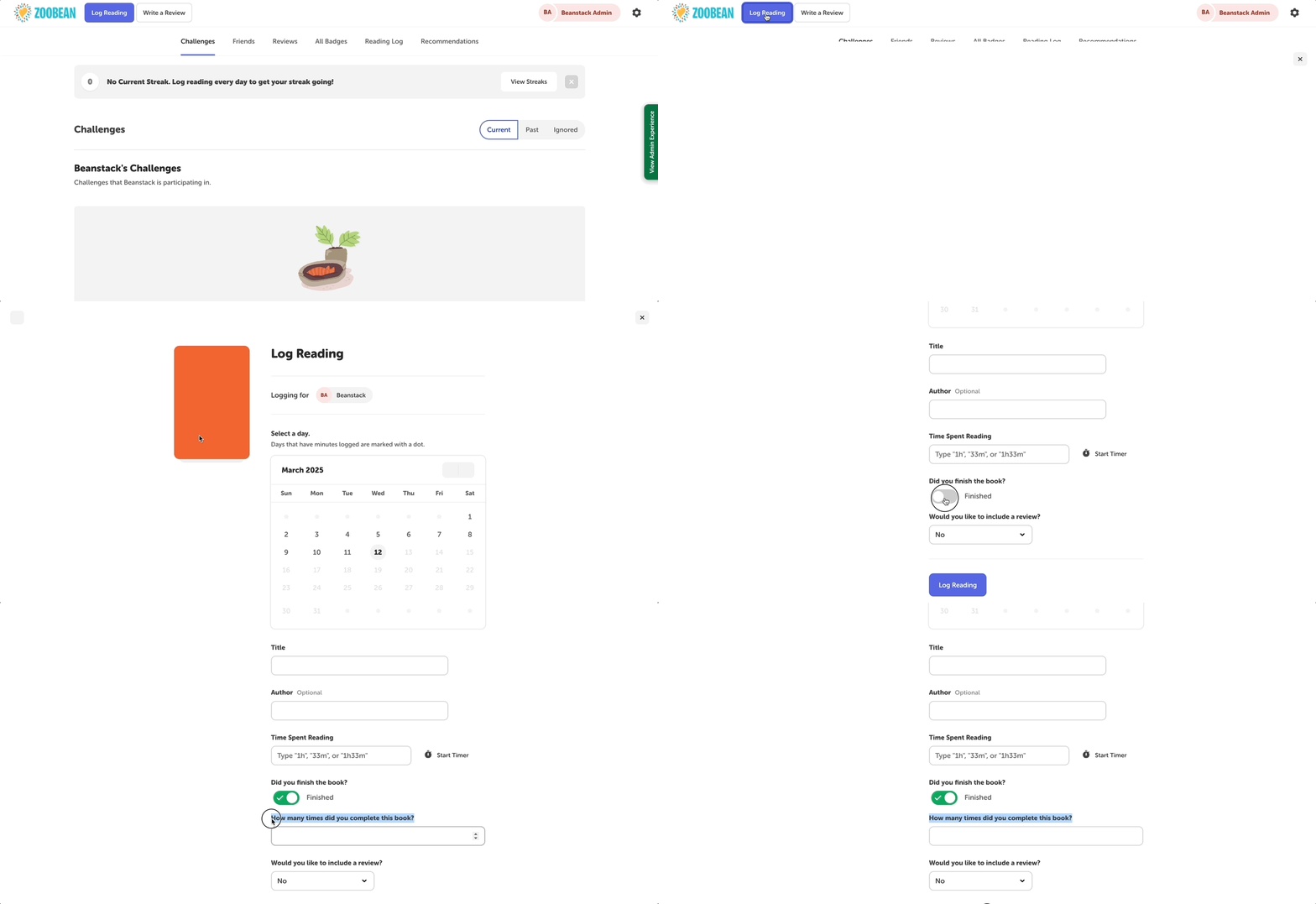
How Many Times Did You Complete This Book?
If you select “How Many Times Did You Complete This Book?” readers on the web will see optional fields for the title and author followed by a prompt asking how many times they completed the book..gif?width=600&height=275&name=Selecting%20how%20many%20times%20a%20book%20was%20completed%20and%20viewing%20the%20updated%20logging%20form%20(1).gif)
Note: If you combine the minutes and books log types, this option will appear on the form if “Did you finish the book?” is toggled on.
Mobile View
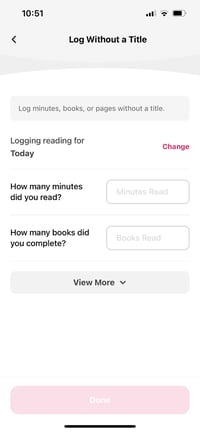
Regardless of which type you pick, if “Allow Batch Logging” is enabled, readers on the mobile app will see a prompt asking “How many books did you complete?” in the “Log Without a Title” screen.