

Tags: Staff, Reading Integrity
Beanstack helps school administrators ensure reading integrity with flags for suspiciously high reading logs, gibberish titles, and more.
Flagged sessions, including those that exceed your site logging limits appear in a few places on the admin view:
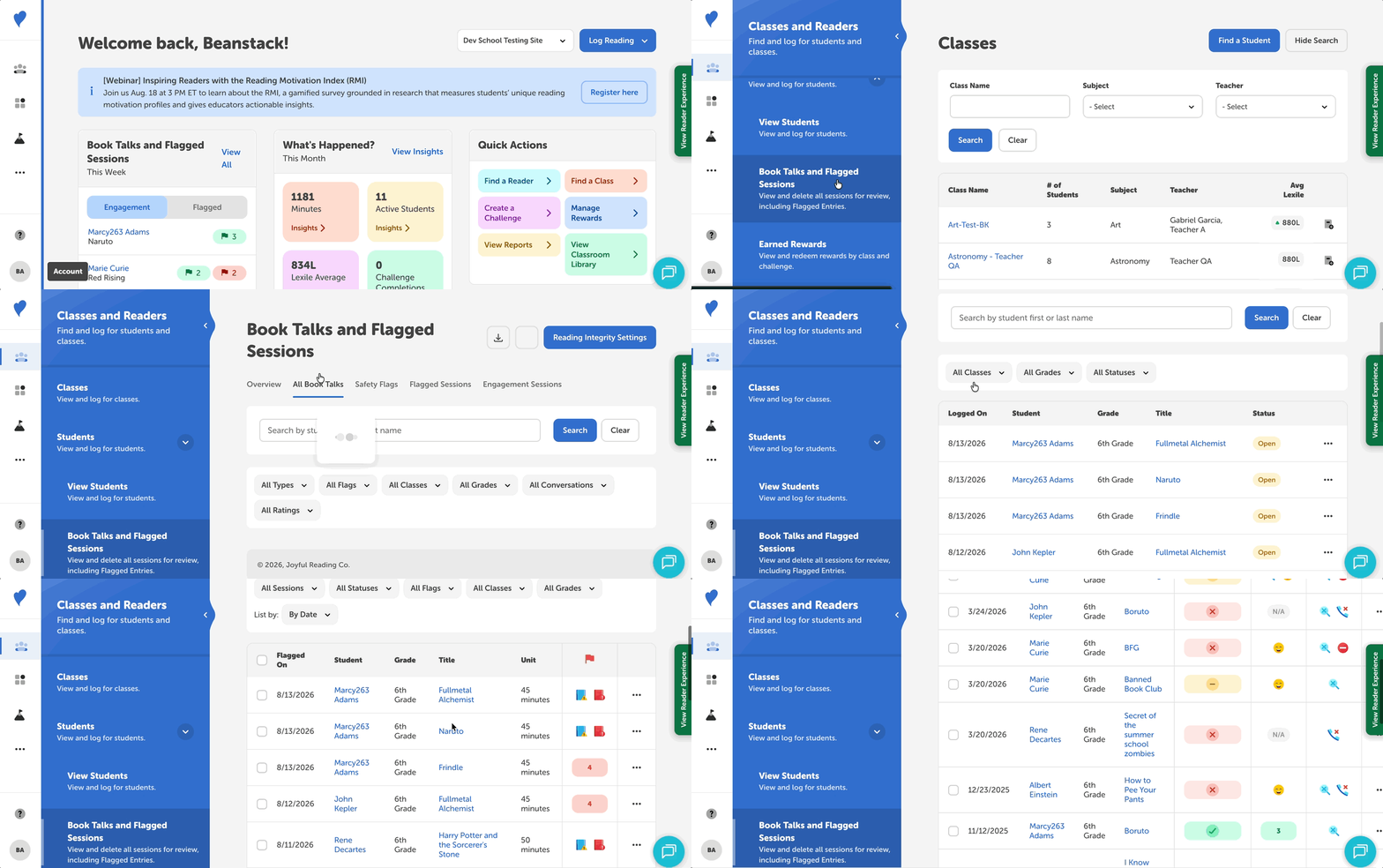
Under Book Talks and Flagged Sessions
-
Navigate to Classes and Readers > Students > Book Talks and Flagged Sessions.
-
Use the “All Book Talks,” “Flagged Sessions,” or “Safety Signals” sections to review, edit, un-flag, or delete sessions.
-
Learn more about reviewing a student’s reading sessions by checking out this article.
Note: When reviewing flagged entries or approving reading sessions, please use caution since deleted data cannot be restored (more about this limitation here).
Under Reports
-
Navigate to Reports.
-
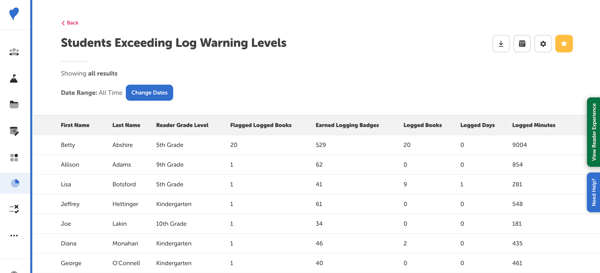
Search for the “Students Exceeding Log Warning Levels” report
-
Customize the report by restricting flagged log entries by date.
-
You can also schedule this report to be delivered to your inbox at regular intervals.
Under Student Profiles
Finally, you can view and edit specific students’ flagged reading sessions in individual reading logs.
-
Navigate to Classes and Readers > Students > View Students.
-
Search for a student using the form fields (e.g., first name, last name).
-
Select a student’s name to go to their individual profile.
-
Go to the “Reading Log” section of their profile.
-
Any flagged entries will appear with a yellow warning sign next to them. You can then choose to edit or delete flagged entries.
.jpg?width=600&height=181&name=A%20student%E2%80%99s%20reading%20log%20featuring%20a%20flagged%20entry%20with%20101%20minutes%20logged%2c%20beyond%20the%20set%20daily%20limit%20(1).jpg)